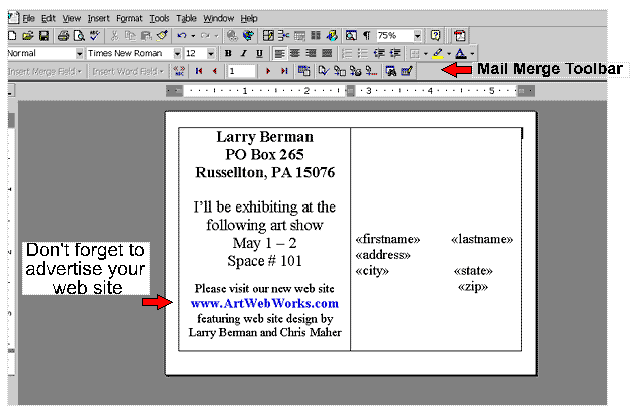
Step by Step Instructions for printing postcard backs
with Microsoft Word and Microsoft Access.
First open Access and create a query to select the names of the customers you want to
mail post cards to. (If you are not sure how to create a query, open Access' help index
and search under "queries, creating") I use the name of the show
(or city) and group all the shows in that area. Chris uses a zip code range
and thinks it's easier. Save it with at descriptive name and you will be able to use it each time you want
to send information to people in that area.
Now open Word and create a postcard template the same size as the postcards you intend
to mail out. This will serve as a template for all of your mailings, only your message will
need to be updated.
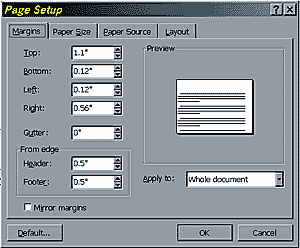
| On the File Menu choose Page Setup.
The first tab lets you select the margins for your post card, the screen capture to the
right shows the settings I use. |
 |
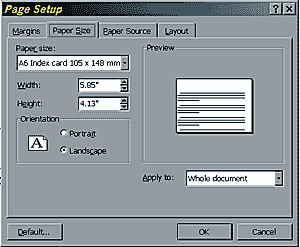 |
Next, select the Paper Size tab. Enter the actual size of the post
card you are using. This is a screen shot that shows a standard Continental card stock. |
Create a two cell table. (If you are not sure how to do this, search in
Word's help index under "tables , creating").
Type your Art Show information in the left cell of your post card.
Click in the right cell of your postcard and using the Tools menu
select Mail Merge. This will bring up the Mail Merge Helper
window.
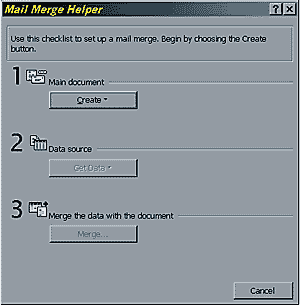
Click on number 1, Main document - Create then select Form
Letters and tell it to use the Active Window. (actually, any of
the options will work here) Now click on number 2, Data source -
Get Data. and choose Open Data Source. This is where you scroll
to find the data that will be entered on the postcard. In this dialog box you will need to
change the Files of Type setting from *.doc to *.mdb.
(Access data bases use the extension *.mdb so you have to specify that's what you are
looking for or else it won't show up). Now navigate to the folder that has your Access
Database in it, and select it. If you have more than one query, select the one with your
mail list in it. After choosing your query, close the form letter setup box.
Word then needs to set up the main document (your postcard template).
Query Options
Save as a new template for that particular show. You can edit the show information next
year.
On the Mail Merge Toolbar, select a button called "Mail Merge" (it's a
smaller button towards the right hand side).
Word will then pull the requested information from the database and create all your
postcards, ready to print.